
Getting Started with Thymio II Wireless Programming Robot
Post Contents
- 1 Getting Started with Thymio II Wireless Programming Robot
- 1.1 LEGO (Regular & Technic)
- 1.2 White Tables or Boards
- 1.3 Computers or Tablets
- 1.4 Markers
- 1.5 Craft Supplies
- 1.6 Black Tape
- 1.7 Turning Thymio On and Off
- 1.8 Changing Modes
- 1.9 Entering and Exiting Modes
- 1.10 You’re Ready
- 1.11 Understanding Sensors and Behavior
- 1.12 Common Situations to Watch For
- 1.13 Troubleshooting Mindset
- 1.14 How It Works
- 1.15 Things to Watch For
- 1.16 Follow-up
- 1.17 How It Works
- 1.18 Things to Watch For
- 1.19 Follow-up
- 1.20 How It Works
- 1.21 Things to Watch For
- 1.22 Follow-up
- 1.23 How It Works
- 1.24 Things to Watch For
- 1.25 Follow-up
- 1.26 How It Works
- 1.27 Things to Watch For
- 1.28 Troubleshooting
- 1.29 Follow-up
- 1.30 How It Works
- 1.31 Things to Watch For
- 1.32 Follow-up
- 1.33 What’s Next
- 1.34 Follow-up
- 1.35 How It Works
- 1.36 What You Made
- 1.37 Follow-up
- 1.38 How It Works
- 1.39 Things to Watch For
- 1.40 Follow-up
- 1.41 Build & Experiment
- 1.42 Follow-up
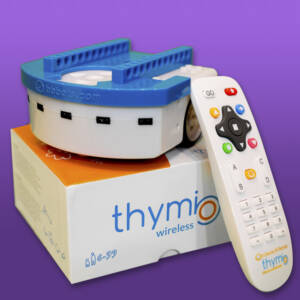 If you’re getting started with Thymio in the classroom, or even just thinking about using it, first of all, great decision. Thymio isn’t a toy that students will get tired of. It’s a powerful learning tool developed by passionate educators, designed to grow with students and be used for a lifetime of programming.
There’s a lot going on under the shell, so this crash course will walk you through the basics. You’ll go from turning Thymio on and exploring its built-in modes, to creating your first program using VPL3.
Once you’re comfortable with the fundamentals, the sky’s the limit. You can dive into our programming missions or start building your own lessons and challenges. Check out our Kids’ Programming YouTube channel to see some of the amazing projects you can do with Thymio.
Also, don’t forget to visit our Programming FAQ Section or the Thymio Technical Page as well if you have other questions not answered below.
Here’s a list of things that are great to have on hand when using Thymio to teach programming. Having the right materials ready makes lessons smoother and opens up more creative possibilities for students.
LEGO (Regular & Technic)
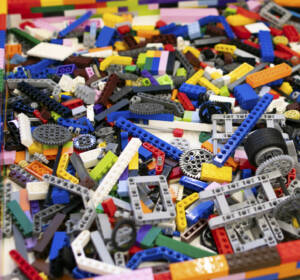 You never know when you’ll need to build obstacles, bowling pins, or even a tower crusher. LEGO is a reliable go-to for quick builds and creative setups.
It becomes even more powerful when paired with the BBbots LinkVest, making LEGO integration faster and easier.
White Tables or Boards
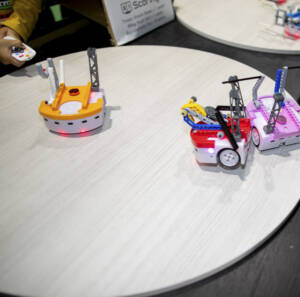 IKEA-style white tables, round tables for battles or sumo, or large white panels are ideal surfaces for Thymio activities.
They provide a clean, consistent environment for sensors and make it easier to run a wide variety of programming lessons.
Computers or Tablets
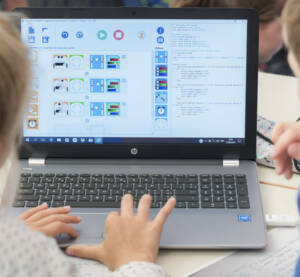 Chromebooks or Windows computers with a USB 2.0 port are the easiest setup. Each student or group can connect directly to Thymio and work independently without interference.
If using tablets or iPads, a central computer running Thymio Suite is required. All dongles connect to the main computer, while students program independently from their tablets.
At least one Chromebook or Windows computer is recommended for classes focusing on VPL3, Scratch, Blockly, or text-based programming (ASEBA).
Markers
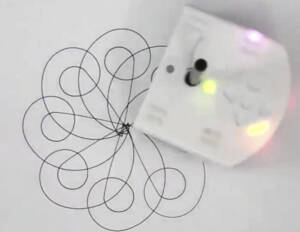 Markers are great for drawing activities and creative challenges. Make sure they are narrow enough to fit into Thymio’s pen holder.
Craft Supplies
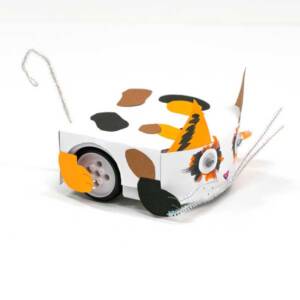 Use templates and simple materials to encourage creativity in projects. Pom-poms, straws, cups, and other craft items can turn simple programs into engaging builds.
Black Tape
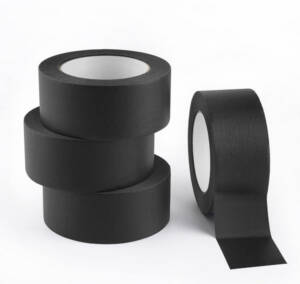 For activities using bottom sensors, light-tack PVC masking tape works best. It is easy to adjust, smooth for movement, and ideal for line-following projects.
Duct tape and paper tape can also be used, but they tend to create more friction and are less consistent.
Turning Thymio On and Off
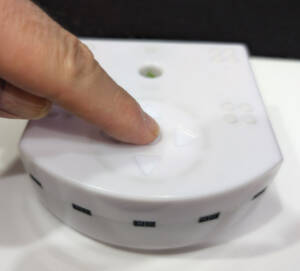
To turn on Thymio, place your finger on the center circle sensor and hold it there for approximately 3 to 5 seconds. After a short moment, Thymio should power on.
If there is no response, avoid tapping or touching repeatedly. Instead:
- Wait 5 to 10 seconds to allow the touch sensor to reset
- Try again by holding the center sensor
- If it still does not respond, connect Thymio via USB to check the battery level
To turn off Thymio, use the same method. Touch and hold the center circle sensor for 3 to 5 seconds until the robot powers down.
Changing Modes
Once Thymio is powered on, you can switch between its different modes by touching any of the directional arrow buttons surrounding the center sensor.
Thymio includes:
- 6 factory-set codeless modes, each represented by a different color
- 1 custom mode for user-created programs
Entering and Exiting Modes
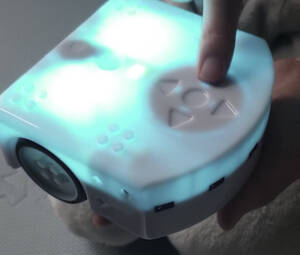 After selecting a mode, activate it by touching the center circle once.
When active, Thymio’s color will slowly fade in and out. This indicates the robot is running the mode and responding to its sensors.
To exit the active mode, touch the center circle again. The color will stop fading and remain solid, showing that Thymio has returned to mode selection.
You’re Ready
Congratulations. You are now ready to start using Thymio. These basic controls are the foundation for all activities and lessons.
Follow-up IdeaHave students explore how each factory mode works. Ask them to choose a color, interact with the robot, and figure out which sensors respond and what Thymio does in each case.
One of Thymio’s greatest strengths is its built-in codeless modes. These modes are ideal for students who are just getting started with programming and robotics, keeping interactions simple and focused while still introducing important concepts.
Below, we’ll explore each mode in more detail. Before that, it’s important to understand how these modes work and what to watch out for when things don’t behave as expected.
Understanding Sensors and Behavior
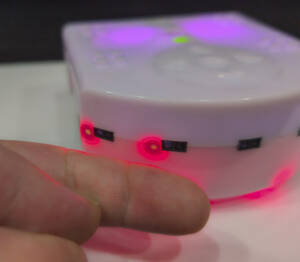 Each mode relies on specific sensors to control how Thymio behaves. It’s easy to forget which sensors are active, and this can sometimes lead to confusing or frustrating results.
If something seems wrong, it’s often not a mistake in the robot, but a clue about how the sensors are interacting with the environment.
Common Situations to Watch For
Green Mode: This mode uses front IR sensors to follow objects, but it also uses bottom sensors to prevent falling off edges.
At the edge of a table, Thymio may suddenly stop because the IR sensors no longer detect reflected light. The same thing happens on a black surface, since black materials absorb light instead of reflecting it.
Light Blue Mode (Black Line Follow):
If the table or floor is dark, or has small black patterns or speckles, Thymio may struggle to follow the line. The sensors cannot clearly distinguish between the intended path and the background.
Purple Mode:
When using multiple robots, all Thymios will respond to the same remote signal, causing them to move together. To control robots independently, a custom program with the BBBots 5-device remote is required.
Troubleshooting Mindset
As a general rule, if something isn’t working as expected, it can feel frustrating at first, but it’s also a valuable opportunity for problem-solving.
Check that the correct mode is selected and consider how the environment might be affecting the sensors. Surfaces, lighting, and obstacles can all change how Thymio responds.
Need Help?If issues continue, don’t hesitate to reach out to BBBots for support.
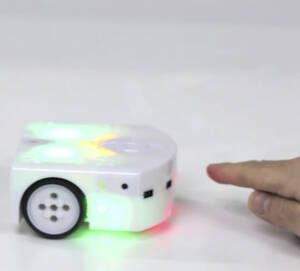 Green mode is one of the most engaging ways to introduce Thymio. In this mode, the robot follows objects using its front sensors, creating an immediate hands-on experience for students.
- Turn on Thymio
- Change to green mode
- Start the green mode program
- Put your hand in front of Thymio and slowly move it closer or further away
- Try to lead Thymio off a table
- Place Thymio on black paper or a dark surface and test again. What happens?
These simple experiments help students understand how sensors control behavior. What looks like a mistake is often a clue about how the robot is interpreting the world.
For extra fun, try connecting multiple Thymios into a train, centipede, or even a Christmas sleigh of reindeer. You can also guide Thymio like a tugboat leading a ship, using another moving toy as the target.
How It Works
Thymio uses its front IR sensors to detect objects by measuring reflected light. When something is in front of it, the robot adjusts its movement to follow.
At the same time, bottom sensors detect edges to prevent falls. If no reflection is detected underneath, Thymio assumes it is at an edge and stops.
Things to Watch For
On the edge of a table, Thymio will stop because the bottom sensors no longer detect reflected light. This is expected behavior.
The same effect happens on black surfaces. Since black absorbs light instead of reflecting it, Thymio may think it is at an edge and refuse to move.
Follow-up
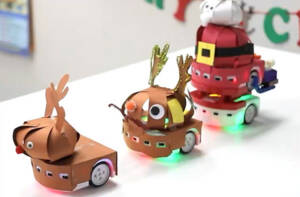
Lesson Idea:All students can make reindeer Thymios and the teacher can make Santa. Set the first reindeer to purple mode and the rest to green mode. Use the remote control to move the first reindeer and watch the others follow.
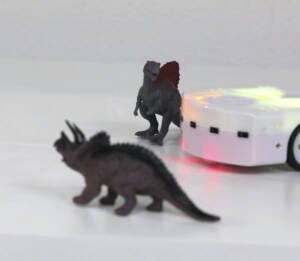 Yellow mode turns Thymio into an autonomous explorer. In this mode, the robot moves on its own and reacts to obstacles using its sensors, making it perfect for introducing concepts like collision detection and reactive behavior.
- Turn on Thymio
- Change to yellow mode
- Start the program
- Place an obstacle in front of Thymio. What happens?
- Put Thymio near the edge of a table or on black paper. What happens?
- Press the forward or back arrows. What happens?
- Send Thymio directly into a wall at a straight angle. Which way does it turn? Does it turn the same way every time?
These experiments help students observe how Thymio reacts automatically based on sensor input. Instead of following something, it is now making its own decisions based on what it detects.
Try building obstacle courses and see if Thymio can navigate through them. You can also turn it into a game by timing how fast it completes the course or playing tag to see if it can avoid being touched.
How It Works
In explorer mode, Thymio moves forward by default and uses its front sensors to detect obstacles. When something is detected, it changes direction to avoid collisions.
The bottom sensors are also active, helping Thymio detect edges or sudden drops so it can stop or change direction to avoid falling.
Things to Watch For
Thymio may behave differently depending on the angle it hits an object. A straight-on collision often causes it to turn in a consistent direction, while angled approaches can produce better results.
Like with the green mode, dark surfaces or black paper can interfere with the bottom sensors and cause Thymio to stop unexpectedly.
Follow-up
Explore FurtherDesign a challenge where students must design or build a maze or obstacle course that Thymio can successfully navigate on its own.
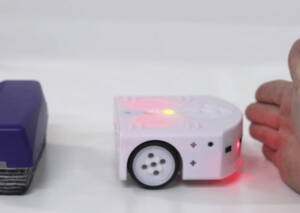 Red mode introduces a different type of behavior. Instead of following or exploring, Thymio actively tries to avoid objects using its sensors. This creates a fun and reactive experience where the robot appears to “escape” from interaction.
- Turn on Thymio
- Change to red mode
- Start the program
- Put your hand in front of Thymio
- Put your hand behind Thymio
- Put your hand in front of and behind Thymio at the same time
- Put your hand behind Thymio and try to force it toward the edge of a table
Watch how Thymio reacts differently depending on where the input is coming from. It will try to move away from obstacles, creating a clear cause-and-effect relationship between sensors and behavior.
This mode is great for helping students understand how robots can make simple decisions based on multiple inputs at once.
How It Works
Thymio uses its front and rear sensors to detect nearby objects. When something is detected, it moves in the opposite direction to avoid it.
If obstacles are detected from multiple directions and Thymio can’t move, it will “scream” by sounding an alarm and signalling that it’s trapped.
Things to Watch For
The bottom sensors are still active, so edges and dark surfaces can also influence its behavior, preventing it from moving in certain directions.
Follow-up
Catch Me If You Can
Use multiple Thymio robots in purple mode and one in red mode. Have students try to corner the red-mode Thymio. If it “screams,” you win.
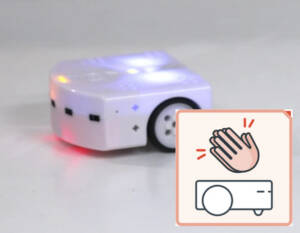 Blue mode introduces sound as an input. In this mode, Thymio listens for patterns of sound and reacts differently depending on how many times it detects a signal.
This is a great way to introduce event-based behavior, where the robot responds to specific triggers like claps or taps.
- Turn on Thymio
- Change to blue mode
- Start the program
- Clap once, wait… clap once, wait… clap once. What happens?
- Clap twice, wait… clap twice, wait… clap twice. What happens?
- Clap three times, wait… clap three times, wait… what happens?
- Alternatively, use your nail and tap once, twice, or three times. What happens?
Try to notice how timing and repetition affect the result. Thymio is not just detecting sound, but also counting patterns.
How It Works
Thymio uses its microphone to detect sound input. It groups sounds into patterns based on how many times a signal is detected within a short period.
Each pattern triggers a different response, allowing simple control using sound instead of touch or movement.
Things to Watch For
Timing matters. If sounds are too fast or too slow, Thymio may not recognize them as part of the same pattern.
Background noise can also affect results, especially in a busy classroom environment.
Follow-up
Lesson Idea:Have students draw simple paths on large pieces of paper. After that, try to control Thymio to move along the paths using only claps or taps. Simple shapes like squares and triangles are great for paths at first.
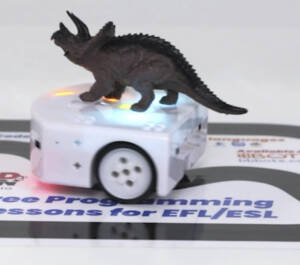 Light blue mode allows Thymio to follow a path using its bottom sensors. This introduces the idea of line-following, a common concept in robotics where the robot navigates by detecting contrast between light and dark surfaces.
- Turn on Thymio
- Change to light blue mode
- Start the program
- Place a 25-cm (10 inch) strip of black tape (about 5 cm (2 inches) wide) on a table and set Thymio on the line. What happens?
- Add more tape to create 45° bends. What happens?
- Create a T-intersection. Does Thymio turn left or right? Is it consistent every time?
You can also draw lines using a black marker, but light-tack PVC masking tape works especially well. It is easy to adjust and has low friction, making movement smoother.
How It Works
Thymio uses its bottom sensors to detect differences in reflected light. White or light surfaces reflect more light, while black absorbs it. The robot uses this contrast to stay on the line and adjust its direction.
Things to Watch For
- Bright sunlight patches may interfere with the sensors
- Non-black lines may work, but not as reliably
- Different surfaces may require calibration for best results
Troubleshooting
- Not following the line? Make sure there is no direct sunlight
- Use a white or light-colored surface without black speckles
- Ensure the line is clearly visible and consistent
Calibration may be required for certain environments:
Calibrate light blue mode (scroll down) →
Follow-up
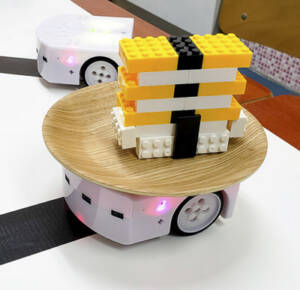
Creative Challenges
- Build a sushi delivery robot that follows a path
- Play tag or pursuit using paths with shortcuts and U-turns
- Create a maze for Thymio to solve
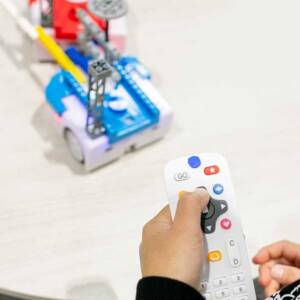 Purple mode allows Thymio to be controlled using an infrared remote. This gives students direct control over movement and is a great way to experiment with inputs before creating programs.
Remember that all robots will respond to any remote signal and move at the same time in the same direction. For independent remote control pairing, you’ll need the BBbots 5-Device Remote for Thymio and a custom program installed in the 7-th bank.
- Turn on Thymio
- Change to purple mode
- Start the program
- Point a remote control (BBBots 5-Device, Thymio, or any Philips RC-5 remote) at Thymio and press a direction
- Point the remote away from Thymio and press a direction. Does it still work?
- If you have two robots, set both to purple mode and press a direction. What happens?
- Press a button quickly, then press and hold it. Is there a difference?
- Step back from Thymio and test the range. One step? Two steps? How far does it work?
How It Works
Remote controls send infrared (IR) light signals, and Thymio receives them using a sensor located on its right side near the front.
IR signals can bounce off surfaces, so the remote may still work even when not pointed directly at the robot, although this is not always consistent.
Things to Watch For
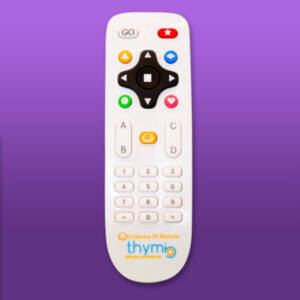 Some remotes continuously send signals while a button is held down, which can interfere with other robots or remotes in the same space.
When multiple robots are in purple mode, they will all respond to the same signal, causing them to move together.
To use independent remotes with different robots, a custom program is required in the 7th programmable mode.
Follow-up
Creative IdeasUse the remote to draw shapes, letters, or paths on the floor. You can also create games or use the remote to test movement ideas before building full programs.
This is one of the most flexible and useful features of Thymio.
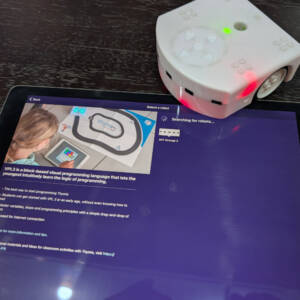
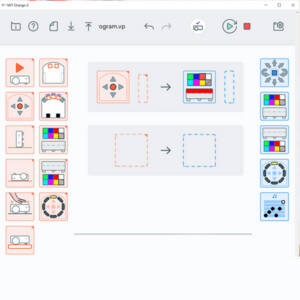 Now that you’ve explored Thymio’s built-in behaviors, it’s time to create your first program. VPL3 (Visual Programming Language) makes it easy to build logic using simple drag-and-drop blocks.
- Install Thymio Suite on a computer (even if using tablets, a central “brain” computer is required)
- Open Thymio Suite
- Insert the USB dongle paired with your Thymio robot
- Turn on Thymio. A flashing red light indicates it is connected (factory modes are disabled while connected)
- Select VPL3 from the program list
- Select your Thymio and click “Program with VPL3”
- To make the program pictured above, first drag the circle and arrows block into the “If” column and choose a button (e.g. up)
- Drag the LED block into the “Then” column and choose a color (e.g. red)
- Press play, then touch the up button on Thymio. It should turn red
Congratulations, you’ve created your first program.
Try pressing other buttons. Nothing happens yet. Add more blocks so each direction has its own color, and use the center button to turn the lights off.
What’s Next
From here, you can start building more advanced logic using timers, multiple conditions, and combinations of inputs.
For example, you can create programs like: “If Thymio is red and upside down, then…” using simple blocks.
Start simple, but it won’t take long before you’re building projects like anemometers, claw machines, and more using visual programming.
Follow-up
Explore FurtherTry building a program where each button triggers multiple behaviors such as change color and play a sound.
 Now let’s build your next program using a tablet setup. This allows multiple students to work independently while connected to a central computer.
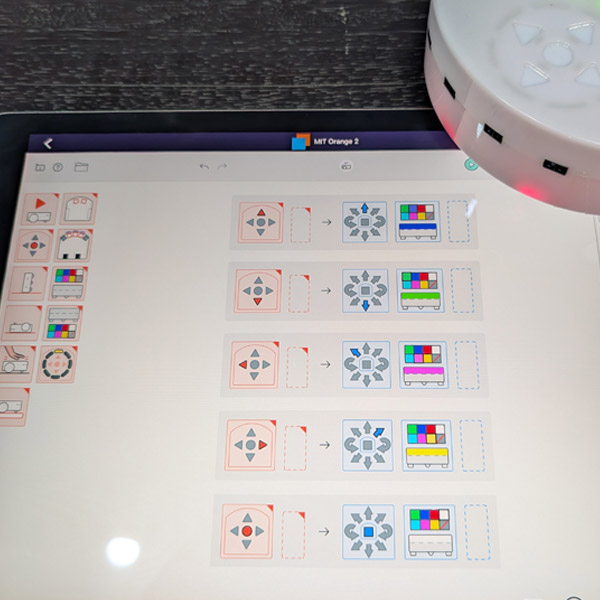
- Install and open Thymio Suite on a central “brain” computer and plug in all the dongles for the robots you will use into the brain computer
- Install and open Thymio Suite on each tablet
- Turn on the Thymio robots
- On each tablet, select the Thymio you want to control (all connected robots will be listed)
- Build the program above and adjust speeds and colors however you like
- Press play to test the program
- Press stop to exit and make changes
You should now be able to control your robot directly from the tablet and see changes instantly.
How It Works
The central computer acts as the connection hub, while each tablet communicates with a specific Thymio. This allows multiple robots to be programmed at the same time without connecting the dongle to each tablet.
What You Made
You’ve created your own custom movement program. This works similarly to using the directional buttons in purple mode, but now you have full control over behavior.
You can change colors, adjust speeds, and even use the center button as part of your program. Keep in mind that using the center button in a custom program will override its normal function in factory modes.
Follow-up
Try This NextModify your program so each direction triggers the opposite movement or effect to make a silly robot.
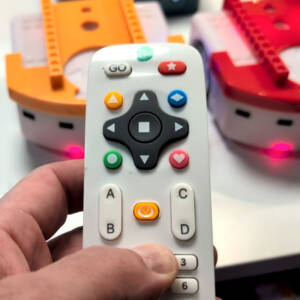 To control multiple Thymio robots independently using remotes, a custom program must be installed in the 7th programmable mode using Thymio Suite and Aseba.
Once installed, you can assign each robot its own channel and control them without interference.
- Turn on your robot. If the custom program is installed correctly, the battery indicator will be green, but the robot will not be lit like normal modes
- Press the center button to start the program. Thymio will glow purple and respond to the remote
- Press the center happy face button (only available on BBbots 5-Device Remote) 3 times to switch to independent control mode. You will hear a beep each time, and the light will change to a rapid flash
- Cycle through color modes using the center button or left/right arrows on top each robot to select a control color (channel)
- Press any other button on the remote to exit the pairing mode
- Hold the matching color button on the remote for 3 – 5 seconds to pair it to that robot with that color
How It Works
Each color mode represents a different RC5 address (CD player, TV, etc.). Once paired, the remote will only control robots set to the same color, allowing multiple robots to operate independently in the same space.
The A, B, C, and D buttons can also control individual wheels, giving more precise control over movement.
Things to Watch For
The program must be installed in the 7th mode for this to work. Without it, all robots will respond to the same signal.
Switching between built-in factory modes requires restarting the robot, since the center button is used within the custom program.
Follow-up
Try This NextPair 5 remotes to 5 robots and play a game of tag, sumo wrestling, or have a race through an obstacle course.
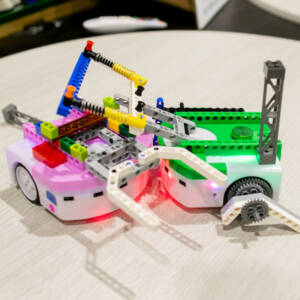 This activity combines creativity, engineering, and a bit of competition. Using LEGO, paired 5-Device Remotes, and Thymio together opens up endless possibilities for building and testing ideas in a fun, hands-on way.
- Prepare two or more Thymio robots, BBBots 5-device remotes, and attach Link Vests
- Attach gears to the wheels using axle pins (insert pins first, align the plus connectors, then push the gear on)
- Attach a tower (or build your own) to the back of each Thymio
- Engineer an awesome battle robot that can knock down your opponent’s tower or push it off a low table to score a point
- Three… two… one… Battle!
Build & Experiment
There are countless ways to use LEGO with Thymio. If you have access to Technic pieces, you’ll have even more options for building stronger, more creative designs.
Encourage students to iterate on their builds. Small changes in structure, balance, or attachments can completely change how the robot performs.
Follow-up
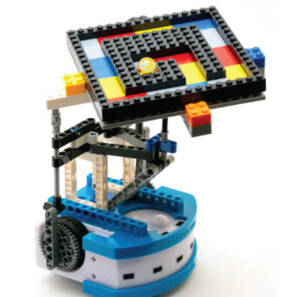
Try This NextExplore one of our favorite projects, the marble maze and marble maze controller. Watch the video and build it yourself.