
Skip to content
FacebookTwitterInstagramPinterest
  • Getting Started
  • Lessons
  • Pixel Puzzles
  • Purchase
  • Solutions
  • My Account

    Register
Mind Mission Programming Logo

Home of Thymio II in Japan

  • Getting Started
  • Lessons
  • Pixel Puzzles
  • Purchase
  • Solutions
  • Getting Started
  • Lessons
  • Pixel Puzzles
  • Purchase
  • Solutions
  • Getting Started
  • Lessons
  • Pixel Puzzles
  • Purchase
  • Solutions
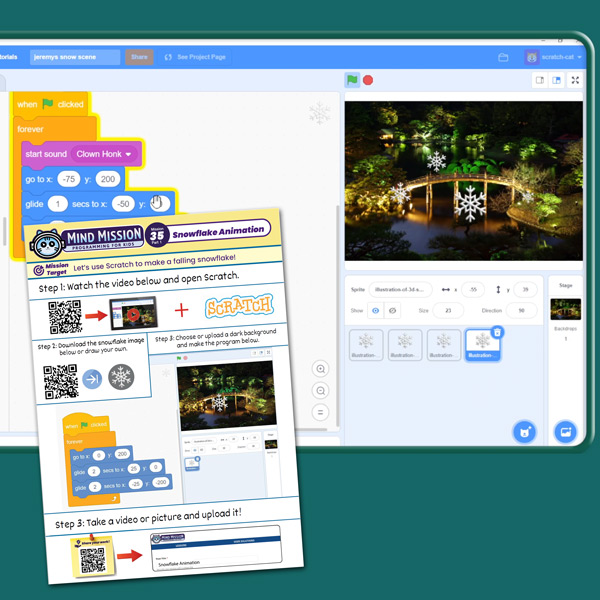
Snowflake Animation (Programming Fundamentals in Scratch)
User solution for: Snowflake Animation (Programming Fundamentals in Scratch) (Lesson Plans)
  • Mind Mission Card 35
  • Submitted by: Jeremy (Teacher)
    Solution video:
    Programming Skills: 3 - Scratch (advanced block)
    Lesson description:

    This lesson combines programming, logic, and game design:

    • Build a classic Pong game using Scratch.
    • Control sprites using keyboard or mouse input.
    • Use variables to track score and game progress.
    • Advanced: Add win/lose conditions and game rules.
    • Advanced: Customize gameplay with speed, sounds, and effects.
    Solution Notes:

    Snowflake Animation Lesson Key Concepts

    Create a winter scene in Scratch and explore how coordinates control movement! This lesson focuses on x-y positioning, animation, and visual design:

    • Create a falling snowflake animation using Scratch.
    • Learn how to use x and y coordinates to control sprite movement.
    • Animate motion using position, timing, and loops.
    • Advanced: Add music and effects to enhance the scene.
    • Advanced: Experiment with different paths and speeds using coordinates.

    Lesson Overview

    In this lesson, students will:

    1. Place sprites using x and y coordinates.
    2. Program a snowflake to move across the screen.
    3. Create a looping animation using movement blocks.
    4. Add music or effects to complete the scene.

    By the end of this lesson, students will understand how coordinates control movement in Scratch.

    Important Notes:

    Make sure you understand how x (horizontal) and y (vertical) positions work together.

    Tips for this Lesson:

    1. Start by placing your sprite at a fixed position.
    2. Change one coordinate at a time to see how it moves.
    3. Use loops to keep the animation running smoothly.
    4. Test different values to explore the screen.

    Products/Materials

    The following products and resources can be used in this lesson:

    Scratch
    Computer or Tablet

    FUN FACT!

    Did you know that all video games use coordinate systems to place objects on the screen? Every movement you see is controlled by x and y values!

    Download the Lesson PDF Files Below:

    Lesson Materials

    mmp35 thumb Snowflake Animation Lesson Key Concepts

    Check out the video tutorial/solutions below:

    Sorry, your browser doesn't support embedded videos.
    Sorry, your browser doesn't support embedded videos.
    Snowflake Animation (Programming Fundamentals in Scratch)
    By Jeremy|2026-05-04T17:03:29+09:002026-05-04|Tags: mmp35, Programming Lesson, Snowflake Animation (Programming Fundamentals in Scratch)|

    Related Posts

    Automatic Marble Run Elevator Robot (Thymio Builder’s Series)
    Getting Started with Scratch in Thymio Suite
    Dino Ball (Super Easy Scratch Game for Beginners)
    Thymio Sound Recorder (Scratch + Robotics Programming Series)
    Scratch-Controlled Thymio (Programming Robots with Scratch)
    Thymio Holographic Bubble Spinner Illusion (Gear Ratio Exploration Project)
    Scratch Writers (Writing Letters with Thymio’s Pen Holder)
    Pong Game (Programming Fundamentals in Scratch)
    Thymio Light Painting | Light Blossoms and Shapes
    Rainbow Flashing Lights and Color Blending Effects with Thymio
    Thymio Mouse Trap Programming Mission
    Scratch Story Teller Slideshow Kids Programming Lesson
    © 2026 | MindMission.pro
    Page load link