
Skip to content
FacebookTwitterInstagramPinterest
  • Getting Started
  • Lessons
  • Pixel Puzzles
  • Purchase
  • Solutions
  • My Account

    Register
Mind Mission Programming Logo

Home of Thymio II in Japan

  • Getting Started
  • Lessons
  • Pixel Puzzles
  • Purchase
  • Solutions
  • Getting Started
  • Lessons
  • Pixel Puzzles
  • Purchase
  • Solutions
  • Getting Started
  • Lessons
  • Pixel Puzzles
  • Purchase
  • Solutions
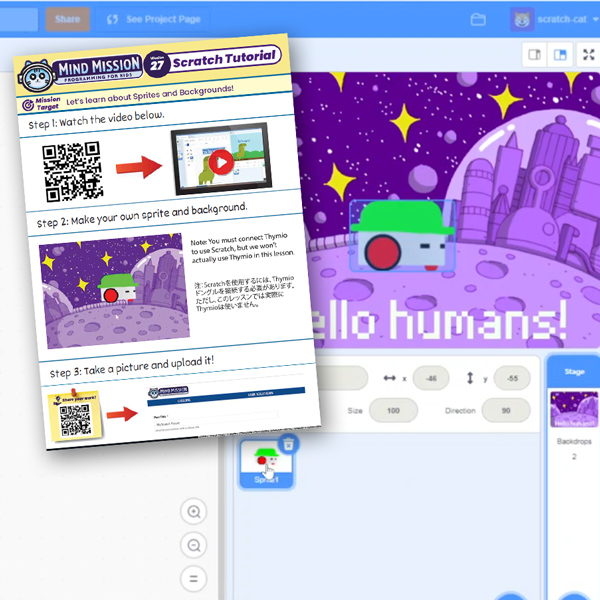
mmp27 scratch program image
User solution for: Getting Started with Scratch in Thymio Suite(Lesson Plans)
  • Mind Mission Card 27
  • Submitted by: Jeremy (Teacher)
    Solution video:
    Programming Skills: 3 - Scratch (advanced block)
    Lesson description:

    Getting Started with Scratch in Thymio Suite

    This lesson combines programming, creativity, and digital design:

    • Learn how to set up Scratch in Thymio Suite for future lessons.
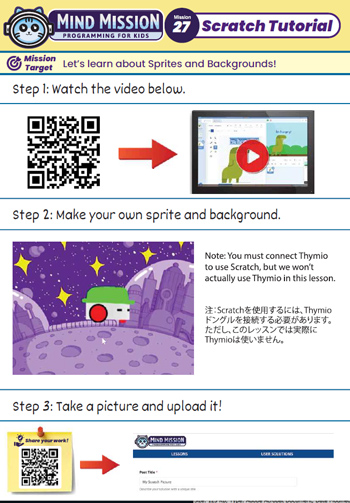
    • Create your own sprite and background using Scratch tools.
    • Explore how Scratch works as a visual programming environment.
    • Advanced: Customize your scene with multiple sprites and designs.
    • Advanced: Prepare your workspace to use Thymio blocks in later lessons.
    Solution Notes:

    Getting Started with Scratch in Thymio Suite Lesson Key Concepts

    Learn how to use Scratch in Thymio Suite and explore how programming and creativity come together! This lesson focuses on setup, design, and understanding the Scratch environment:

    • Learn how to set up Scratch in Thymio Suite for future lessons.
    • Create your own sprite and background using Scratch tools.
    • Explore how Scratch works as a visual programming platform.
    • Advanced: Add multiple sprites and customize your scene.
    • Advanced: Prepare your workspace to use Thymio blocks in later lessons.

    Lesson Overview

    In this lesson, students will:

    1. Open and set up Scratch in Thymio Suite.
    2. Create a custom sprite.
    3. Design a background scene.
    4. Explore the Scratch interface and tools.

    By the end of this lesson, students will understand how to set up and use Scratch for future programming activities.

    Important Notes:

    Thymio must be connected to use Scratch, but it will not be used in this lesson. Alternatively, you can use a virtual Thymio robot from Thymio Suite if you want to bypass using the physical robot.

    Tips for this Lesson:

    1. Start with simple shapes when creating sprites.
    2. Use bright colors to make your design stand out.
    3. Explore different tools in the Scratch editor.
    4. Take your time to get familiar with the layout.

    Products/Materials

    The following products and resources can be used in this lesson:

    Thymio II Robot
    Scratch (Thymio Suite)
    Computer or Tablet

    FUN FACT!

    Did you know that Scratch is used by millions of students around the world to learn programming? It’s one of the most popular ways to start coding!
    Download the Lesson PDF Files Below:

    Lesson Materials

    Getting Started with Scratch in Thymio Suite

    Check out the video tutorial/solutions below:

    Sorry, your browser doesn't support embedded videos.
    Getting Started with Scratch in Thymio Suite
    By Jeremy|2026-05-14T23:17:19+09:002026-05-14|Tags: Getting Started with Scratch in Thymio Suite, mmp27, Programming Lesson|

    Related Posts

    Hide and Seek Thymio (Wireless Distance Detection with Multiple Robots)
    Automatic Marble Run Elevator Robot (Thymio Builder’s Series)
    Dino Ball (Super Easy Scratch Game for Beginners)
    Thymio Sound Recorder (Scratch + Robotics Programming Series)
    Scratch-Controlled Thymio (Programming Robots with Scratch)
    Thymio Holographic Bubble Spinner Illusion (Gear Ratio Exploration Project)
    Scratch Writers (Writing Letters with Thymio’s Pen Holder)
    Snowflake Animation (Programming Fundamentals in Scratch)
    Pong Game (Programming Fundamentals in Scratch)
    Thymio Light Painting | Light Blossoms and Shapes
    Rainbow Flashing Lights and Color Blending Effects with Thymio
    Thymio Mouse Trap Programming Mission
    © 2026 | MindMission.pro
    Page load link