
By Jeremy|2026-05-04T17:03:29+09:002026-05-04|Tags: mmp35, Programming Lesson, Snowflake Animation (Programming Fundamentals in Scratch)|
This lesson combines programming, logic, and game design:
- Build a classic Pong game using Scratch.
- Control sprites using keyboard or mouse input.
- Use variables to track score and game progress.
- Advanced: Add win/lose conditions and game rules.
- Advanced: Customize gameplay with speed, sounds, and effects.
Solution Notes:
Snowflake Animation Lesson Key Concepts
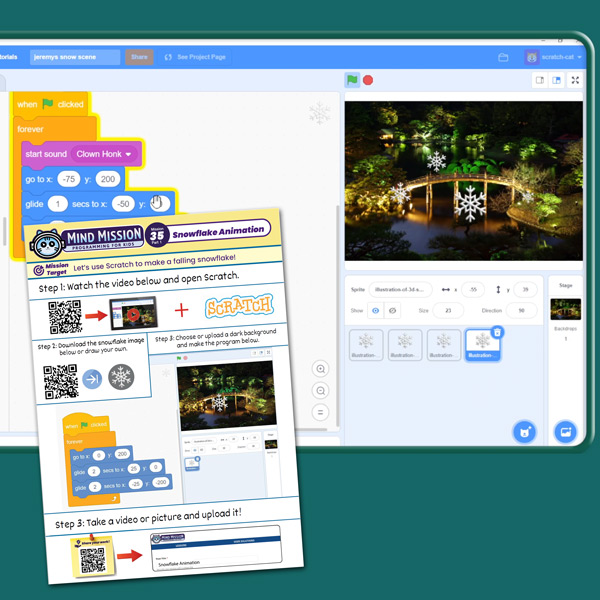
Create a winter scene in Scratch and explore how coordinates control movement! This lesson focuses on x-y positioning, animation, and visual design:
- Create a falling snowflake animation using Scratch.
- Learn how to use x and y coordinates to control sprite movement.
- Animate motion using position, timing, and loops.
- Advanced: Add music and effects to enhance the scene.
- Advanced: Experiment with different paths and speeds using coordinates.
Lesson Overview
In this lesson, students will:
- Place sprites using x and y coordinates.
- Program a snowflake to move across the screen.
- Create a looping animation using movement blocks.
- Add music or effects to complete the scene.
By the end of this lesson, students will understand how coordinates control movement in Scratch.
Important Notes:
Make sure you understand how x (horizontal) and y (vertical) positions work together.
Tips for this Lesson:
- Start by placing your sprite at a fixed position.
- Change one coordinate at a time to see how it moves.
- Use loops to keep the animation running smoothly.
- Test different values to explore the screen.
Products/Materials
The following products and resources can be used in this lesson:
Scratch
Computer or Tablet
FUN FACT!
Did you know that all video games use coordinate systems to place objects on the screen? Every movement you see is controlled by x and y values!
Download the Lesson PDF Files Below:
Check out the video tutorial/solutions below: