
Skip to content
FacebookTwitterInstagramPinterest
  • Getting Started
  • Lessons
  • Pixel Puzzles
  • Purchase
  • Solutions
  • My Account

    Register
Mind Mission Programming Logo

Home of Thymio II in Japan

  • Getting Started
  • Lessons
  • Pixel Puzzles
  • Purchase
  • Solutions
  • Getting Started
  • Lessons
  • Pixel Puzzles
  • Purchase
  • Solutions
  • Getting Started
  • Lessons
  • Pixel Puzzles
  • Purchase
  • Solutions
custom thymio 7th bank
User solution for: Custom Thymio (Lesson Plans)
  • Mind Mission Card 58, Mind Mission Card 59
  • Submitted by: Jeremy (Teacher)
    Solution video:
    Programming Skills: 5 - Aseba Studio (text)
    Lesson description:

    This lesson combines robotics, customization, and programming:

    • Create a custom VPL3 program that Thymio can use anytime.
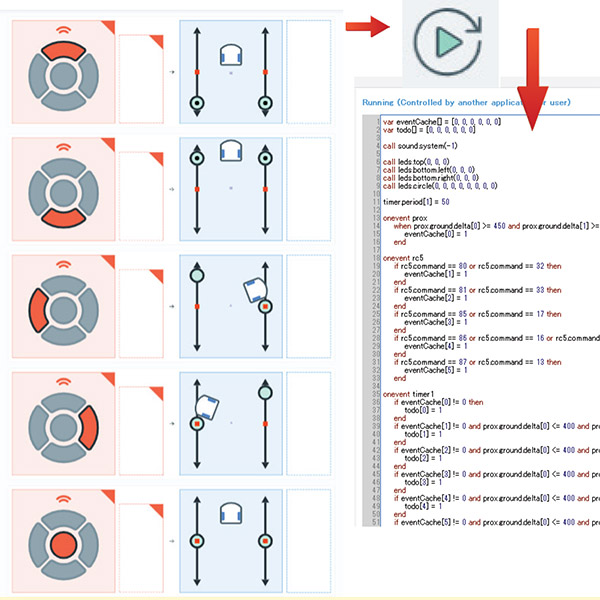
    • Use Aseba Studio to view and manage the program behind the scenes.
    • Save and load your program into Thymio’s 7th memory bank.
    • Advanced: Modify and reuse your saved programs for different tasks.
    • Advanced: Build a library of custom behaviors that run without a computer.
    Solution Notes:

    Custom Thymio Lesson Key Concepts

    Create your own custom programs and store them directly on Thymio! This lesson focuses on customization, memory, and deeper programming concepts using VPL3 and Aseba:

    • Create a custom VPL3 program that controls Thymio’s behavior.
    • Use Aseba Studio to view and manage the program behind the scenes.
    • Save and load your program into Thymio’s 7th memory bank.
    • Advanced: Modify and reuse your saved programs for different tasks.
    • Advanced: Build a library of custom behaviors that run without a computer.

    Lesson Overview

    In this lesson, students will:

    1. Create and run a program using VPL3.
    2. Open Aseba Studio to access the program code.
    3. Save the program as a file and load it into Thymio’s memory.
    4. Restart Thymio and run the saved program independently.

    By the end of this lesson, students will understand how to store and reuse programs directly on a robot.

    Important Notes:

    Make sure your program works correctly before saving it to Thymio. Once stored, it will run automatically, so test carefully.

    Tips for this Lesson:

    1. Keep your program simple before saving it permanently.
    2. Double-check file names and steps when using Aseba Studio.
    3. Test your program after restarting Thymio.
    4. Try saving different programs to build your own collection.

    Products/Materials

    The following products and resources can be used in this lesson:

    Thymio II Robot
    Computer (Thymio Suite)
    VPL3
    Aseba Studio

    FUN FACT!

    Did you know that Aseba is an event-based programming language used in robotics? It reacts to events like sensors, buttons, and timers, similar to how Scratch, JavaScript, and Python event systems work!

    Download the Lesson PDF Files Below:

    Lesson Materials

    mmp59 custom Thymio

    Check out the video tutorial/solutions below:

    Sorry, your browser doesn't support embedded videos.
    Custom Thymio (Saving Aseba Programs to Thymio’s 7th Bank)
    By Jeremy|2026-04-21T20:14:16+09:002026-04-21|Tags: Custom Thymio, mmp59, Programming Lesson|

    Related Posts

    Marble Maze Controller
    Thymio Speed Check
    Speedometer Thymio
    Fastest Thymio
    Thymio Darts (Scratch)
    Bowling Bots Challenge
    Tower Toppler
    Projection Lamp (Halloween Programming Lesson)
    Goofy Thymio (Backwards Control with VPL3)
    Baller Thymio (Accelerometer Sensor Balancing)
    Animated Scratch Dice Game (Scratch)
    Christmas Tree Light Show and Motion (Scratch)
    © 2026 | MindMission.pro
    Page load link