
Skip to content
FacebookTwitterInstagramPinterest
  • Getting Started
  • Lessons
  • Pixel Puzzles
  • Purchase
  • Solutions
  • My Account

    Register
Mind Mission Programming Logo

Home of Thymio II in Japan

  • Getting Started
  • Lessons
  • Pixel Puzzles
  • Purchase
  • Solutions
  • Getting Started
  • Lessons
  • Pixel Puzzles
  • Purchase
  • Solutions
  • Getting Started
  • Lessons
  • Pixel Puzzles
  • Purchase
  • Solutions
mmp keyboard controlled thymio
User solution for: Keyboard Controlled Thymio (Lesson Plans)
  • Mind Mission Card 36
  • Submitted by: Jeremy (Teacher)
    Solution video:
    Programming Skills: 3 - Scratch (advanced block)
    Lesson description:

    In this project, students will:

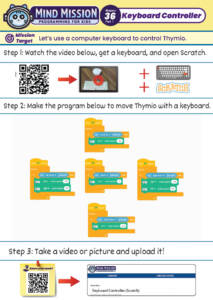
    1. Set Up Thymio for Keyboard Control: Connect Thymio to Scratch and configure keyboard commands for precise movements.
    2. Learn Movement Programming: Program Thymio to move forward, backward, and turn using simple keyboard inputs.
    3. Explore Creative Applications: Use keyboard control to complete challenges like navigating obstacles or collaborating on group projects like Hide and Seek or detection robots.


    Solution Notes:

    Key Concepts

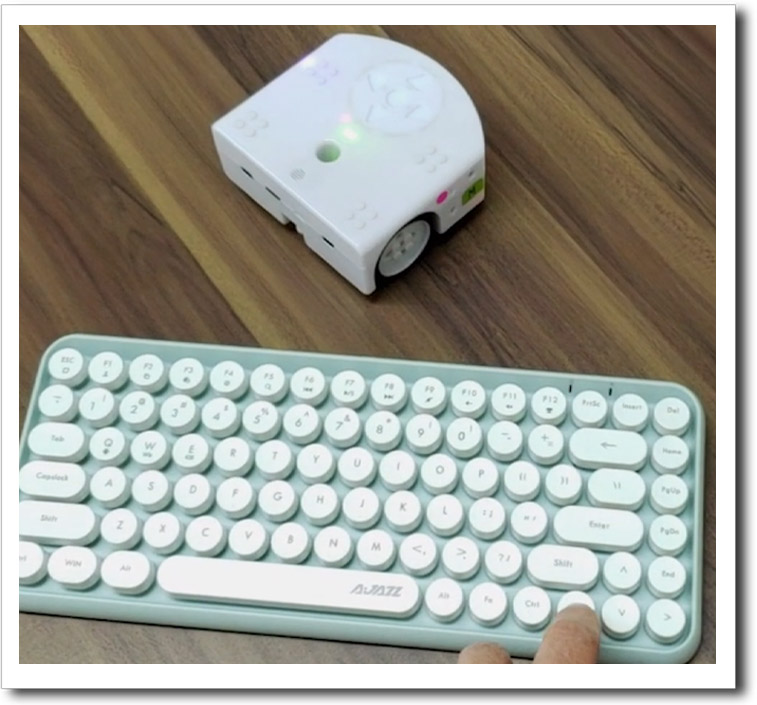
    Learn how to control Thymio using a keyboard with Scratch! While the Thymio remote control is great, using a keyboard brings unique advantages:

    • No need for IR, which can be blocked by obstacles.
    • Extended range for controlling the robot.
    • Fine control of movements and turning radius.
    • Opens up possibilities for more creative and interactive projects!

    After mastering keyboard control, students can take on exciting challenges like playing Hide and Go Seek remotely or using a detection robot to find “dangerous” objects.

    Lesson Overview

    In this lesson, students will:

    1. Connect Thymio to Scratch and set up keyboard controls.
    2. Experiment with basic movement commands, including forward, backward, and turning.
    3. Explore creative projects using keyboard control.

    By the end, students will not only gain a deeper understanding of programming and robotics but also build skills in creativity, logic, and problem-solving.

    FUN FACT!

    wifi icon

    Did you know that using Scratch to control Thymio utilizes Wi-Fi, which is available almost everywhere? In contrast, a remote control uses infrared (IR), which sends many quick flashes of light to the robot’s sensor. While IR is great for close-range controls, Wi-Fi gives you more flexibility and fewer obstacles for communication!
    Download the lesson PDF files below:

    mmp36 keyboard controlled thymio


    Keyboard Controlled Thymio (Scratch + Thymio)
    By Jeremy|2026-04-09T21:47:35+09:002025-01-09|Tags: Keyboard Controlled Thymio|

    Related Posts

    Getting Started with Scratch in Thymio Suite
    Dino Ball (Super Easy Scratch Game for Beginners)
    Thymio Sound Recorder (Scratch + Robotics Programming Series)
    Scratch-Controlled Thymio (Programming Robots with Scratch)
    Thymio Holographic Bubble Spinner Illusion (Gear Ratio Exploration Project)
    Scratch Writers (Writing Letters with Thymio’s Pen Holder)
    Snowflake Animation (Programming Fundamentals in Scratch)
    Pong Game (Programming Fundamentals in Scratch)
    Thymio Light Painting | Light Blossoms and Shapes
    Rainbow Flashing Lights and Color Blending Effects with Thymio
    Thymio Mouse Trap Programming Mission
    Scratch Story Teller Slideshow Kids Programming Lesson
    © 2026 | MindMission.pro
    Page load link